Keeping up with an Instagram account’s Following activity can become a recurring task. You open the profile, scroll through names, and try to remember which ones you have seen before. Repeat that across creators or competitors, and checking for changes starts taking time away from the work those discoveries should inform.
DolphinRadar brings the current Following list, dated follow updates, and email notifications into one workflow. Start with a public username, explore who the account follows, and let ongoing tracking surface newly detected accounts. Turn on email alerts to know when there is an update worth reviewing.
For marketing teams, the appeal is straightforward: less repeated checking, a clearer record of changes, and more time to act on relevant discoveries. Here is how to get started.
What Makes DolphinRadar Useful for Ongoing Research
A Following count gives you a number. DolphinRadar helps you explore the accounts behind it and follow what changes after tracking begins. Its dashboard separates the current list from subsequent updates, so you can choose between exploring the broader list and catching up on newly discovered accounts.
|
Feature |
What it helps you do |
|
Following List |
Browse the public account’s available Following information for an initial view of the people, brands, and communities it follows. |
|
Follow Updates |
Review newly detected accounts in a dated timeline, without comparing lists manually. |
|
Email notifications |
Get notified when new accounts appear in the updates, reducing the need to reopen Instagram to check. |
|
Tracking summary |
See the number of new accounts found and the analyzed period when reviewing the dashboard. |
|
Batch Download |
Save the data available through the dashboard’s download option for later review. |
You can use the tool without connecting your personal Instagram account or sharing your Instagram password. There is also no need to follow or message the profile you are researching.
Step 1: Start With a Public Instagram Username
Open DolphinRadar’s Instagram Following Viewer and enter the username of a supported public account. Choose a creator, competitor, or brand that you already have a reason to follow over time.
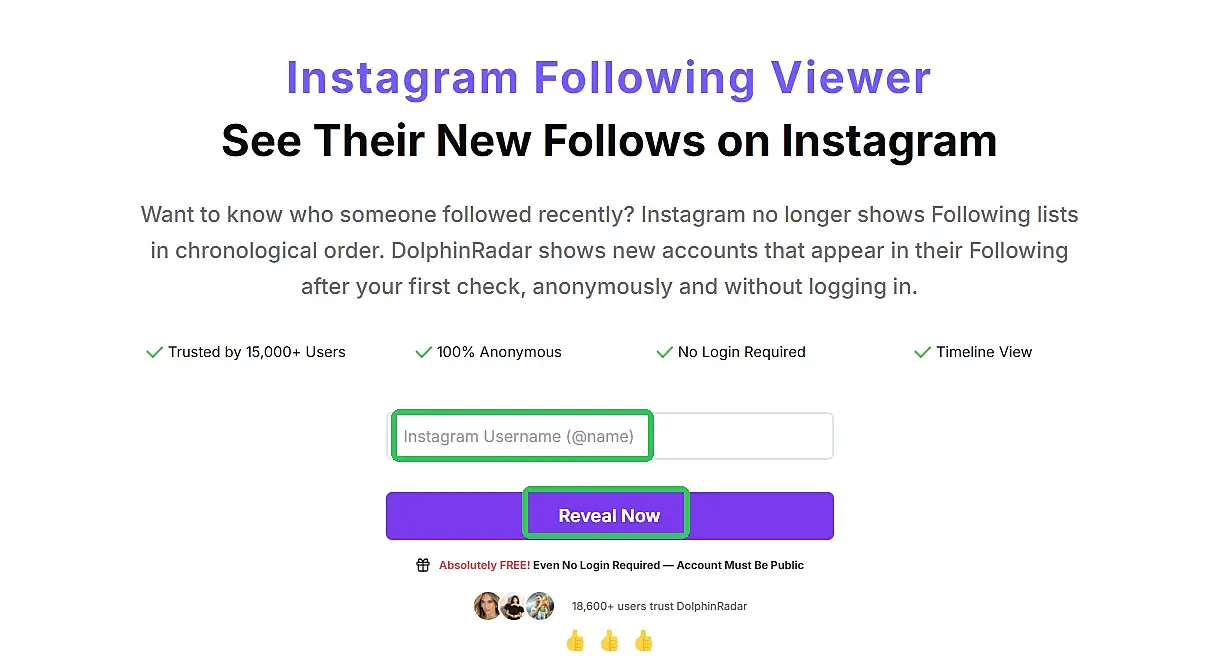
Follow the setup and access options shown for the account. Your first check creates a reference from the available Following list. That starting point allows DolphinRadar to identify accounts newly found during later checks.
Set up tracking when an account becomes relevant to your work. Starting at the beginning of a campaign or creator evaluation gives you a reference for the period you actually want to observe.
Step 2: Explore the Following List
Open Following List to review the available accounts the profile follows. This provides context that a bio, post grid, or Following total alone can leave out.
For example, a fitness creator’s list may introduce you to specialist coaches, equipment brands, events, or communities. A competitor’s list may surface accounts you want to understand better. You can explore promising profiles and decide which ones deserve further attention.
Keep the direction clear: Following means whom the selected account follows; Followers means who follows that account. Here, you are exploring the selected profile’s Following information.
Step 3: Use Follow Updates to See What Changes
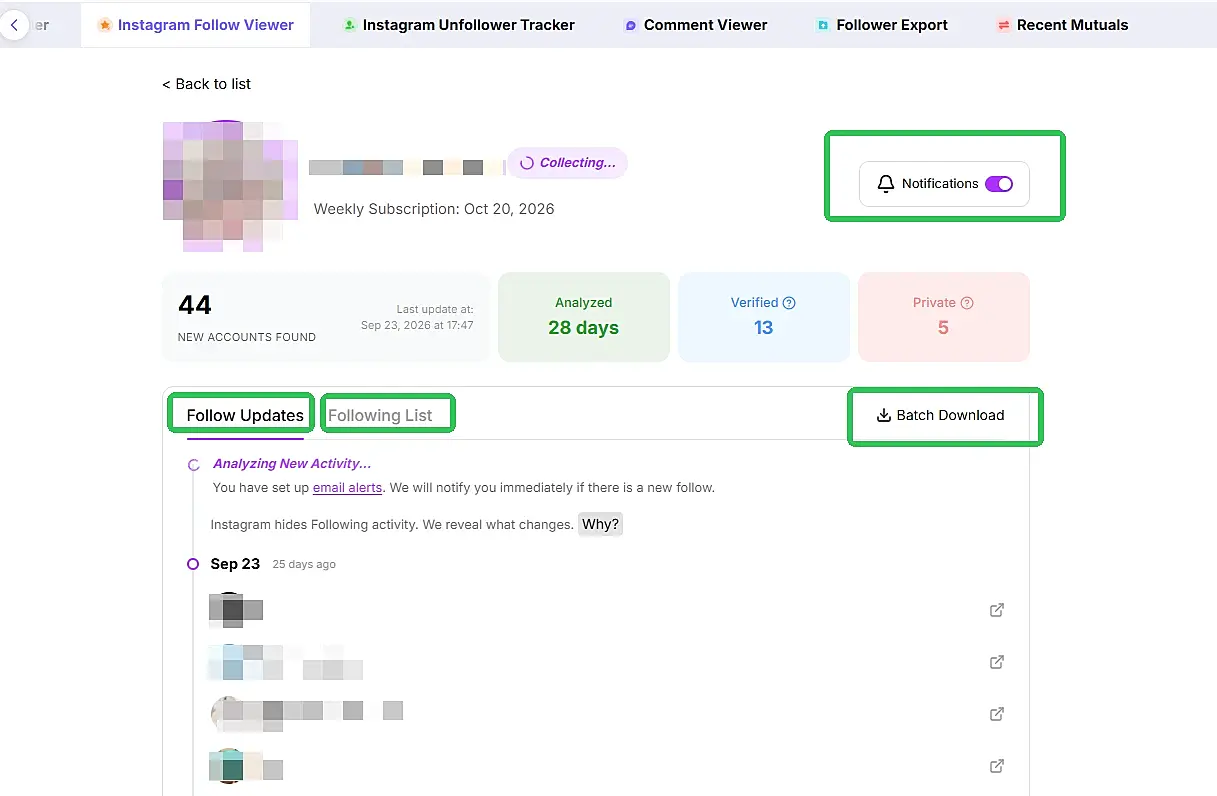
Once tracking is underway, open Follow Updates to catch up on newly detected accounts. The dashboard presents updates by date, bringing new discoveries into a timeline you can revisit.
This removes the need to remember the original list or compare usernames by hand. Instead of scrolling through the same names on every visit, you can focus your review on what DolphinRadar has newly found.
The summary showing new accounts found and the analyzed period adds context to that review. It gives you a quick orientation before you examine the dated entries below.
Use this view when a colleague asks what has appeared since tracking began, or when you return to an account after working on another campaign. The initial list and subsequent updates remain distinct parts of the workflow.
Step 4: Turn On Email Notifications
Email notifications make the workflow easier to maintain between dashboard visits. Open the account’s notification control, enable alerts, and follow any email setup prompts. Confirm that notifications are switched on for the profile you want to track.
DolphinRadar will notify you when new accounts appear in Following Updates. You can then return to the dashboard to examine the additions and their context.
That changes the routine from repeatedly checking whether anything has happened to reviewing an update when there is something new to see. During a busy campaign, the team can continue with content, customer conversations, and outreach while email alerts draw attention back to new discoveries.
Keep the roles of the two features clear: email brings an update to your attention; the dashboard provides the timeline for reviewing it. Together, they make ongoing observation more practical than relying on memory and repeated manual visits.
Step 5: Save Data for Your Team Review
Use the dashboard’s Batch Download option when you want to save the data it makes available. A downloaded copy can support a campaign review or a discussion with colleagues who are assessing the same account.
Record the account and review date alongside your notes. This helps your team keep observations connected to the relevant campaign period, especially when you return to the research later.
The workflow now has a clear cycle: establish a starting list, receive notifications, review dated additions, and retain useful information for your next decision.
Putting the Workflow Into Practice
Imagine a small outdoor brand evaluating a hiking creator for an upcoming campaign. This is a hypothetical example of how a team could use the tool.
The team starts tracking the creator’s public account and browses Following List for context. It then enables email notifications and continues preparing the campaign. When an alert arrives, a team member opens Follow Updates and reviews the newly detected accounts.
A relevant photographer or local outdoor community could become a useful lead. The team checks that account’s content and public contact information, then uses Batch Download if it wants to retain the available data for its campaign discussion.
The product handles repeated observation and organizes the changes; the team spends its time evaluating the discoveries. That division of work is the main reason to use the tracking and notification features together.
How to Read the Results
Tracking begins with your first reference list; it does not reconstruct earlier follow history. Dates represent when DolphinRadar first detected an account, rather than the exact Instagram follow time, and update timing can vary. Current list order does not establish follow chronology. Coverage depends on available public information, and large or restricted accounts may return partial results. A follow is a research signal to investigate, rather than proof of a partnership or private intent.
Build a More Convenient Following Research Routine
With DolphinRadar.com, your team can review Following lists, track newly detected accounts, and receive email notifications when updates appear. Start with a public username and turn on notifications to spend less time checking for changes and more time pursuing relevant discoveries.