The live location feature on WhatsApp allows users to share their real-time location on a map that updates automatically as they move.
Unlike the regular location option (which sends a fixed point on the map), WhatsApp live location shows your movement for a selected period of time, allowing others to follow your route.
For businesses, it can also improve customer support, logistics, and field service operations.
In this guide, you will learn how WhatsApp live location works and how to share your location step by step.
What is WhatsApp live location?
WhatsApp live location is a feature that allows users to continuously share their location in a chat.
When this feature is enabled:
- your location updates automatically
- contacts or groups can track your movement in real time
- sharing lasts for a limited time
- you can stop sharing anytime
This feature was developed by Meta Platforms and uses end-to-end encryption for privacy and security.
How to share live location on WhatsApp (step by step)
Follow these steps to share live location on WhatsApp.
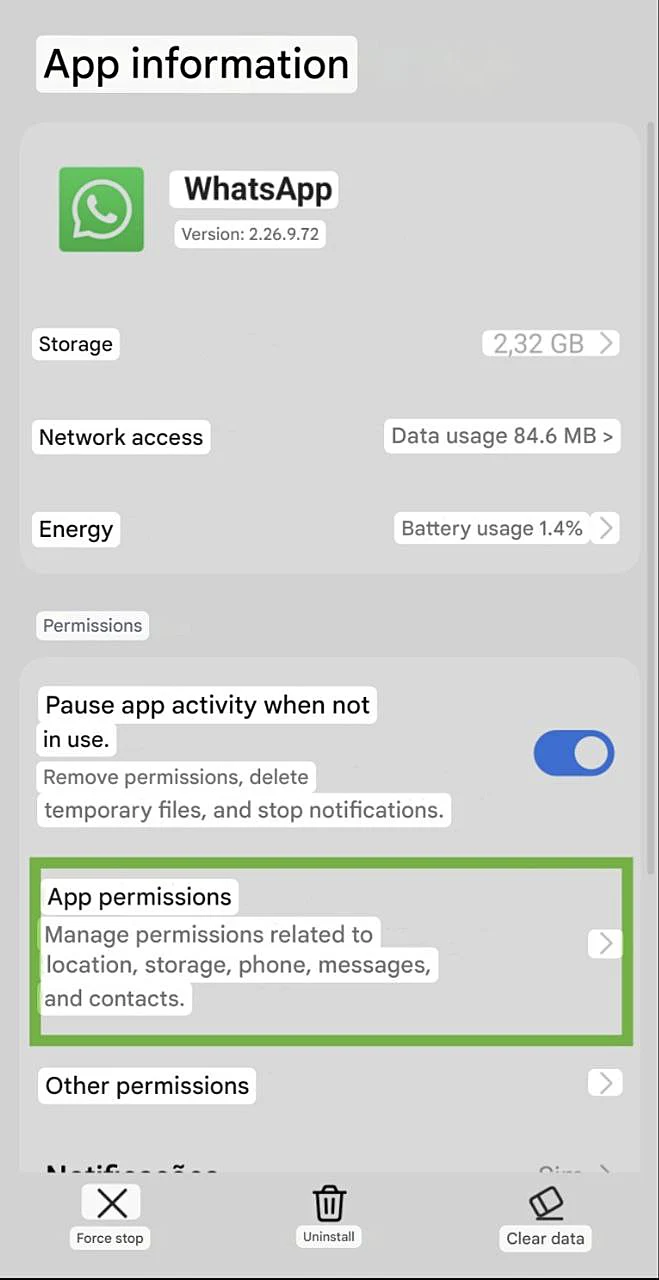
1. Enable location permissions
First, make sure location permissions are enabled on your smartphone.
Go to:
Settings → Apps → WhatsApp → Permissions → Location
Choose one option:
- Allow only while using the app
- Ask every time
- Deny
2. Open a conversation in WhatsApp
Open the chat with the person or group where you want to share your location.
Tap the attachment button:
- Android: paperclip icon
- iPhone: + button
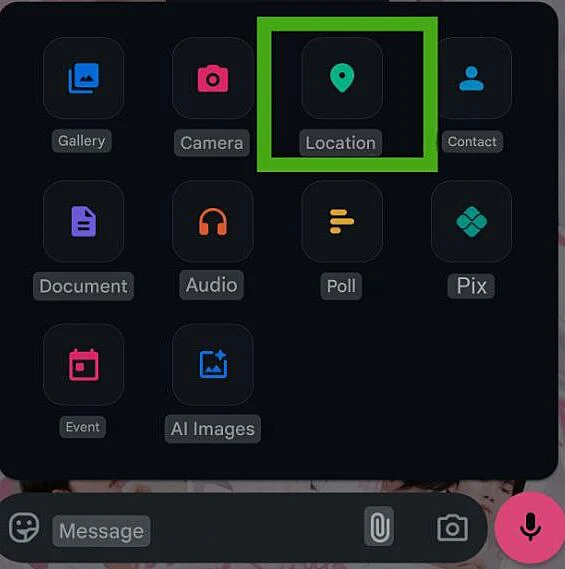
3. Select "Location"
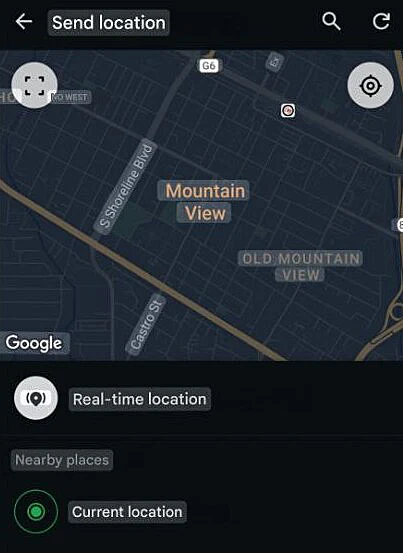
In the attachment menu, tap Location. You will see two options:
- Send current location
- Share live location
- Select Share live location.
4. Choose how long to share your location
You can choose:
- 15 minutes
- 1 hour
- 8 hours
You can also add a comment if needed.
After sending, a map will appear in the chat showing your real-time location.
The location will keep updating until:
- the selected time ends
- you manually stop sharing
How to stop sharing live location
To stop sharing before the selected time ends:
- open the chat
- tap the map message
- select Stop sharing
The location will stop updating immediately.
How Companies Can Use Real-Time Location in Customer Service
Although it's a simple feature, it can help optimize both support operations, logistics, and customer service. Through:
Delivery Tracking
If you sell a product and deliver it to your customer, you can improve customer service by sharing the delivery person's location with the customer so they can track the route.
Examples of businesses that use this:
- restaurants;
- local e-commerce;
- pharmacies;
- markets;
- And others…
Using this feature to track deliveries can speed up the service process, as it reduces questions about deadlines, improves transparency, and increases customer confidence.
Technical Support or On-Site Services
Professionals who provide on-site service can send their location while they are on their way. Some professionals who can use these services are:
- internet technicians
- installers
- technical assistance
- residential maintenance
The feature helps reduce customer anxiety and also avoids receiving calls or collection notices.
Meeting with clients
Companies also use location to facilitate meetings at:
- events;
- business visits;
- external meetings;
Common problems with WhatsApp's real-time location
Some users may experience difficulties using the feature. See the main problems and how to solve them.
If none of our tips work, remember that you can contact WhatsApp support directly.
WhatsApp's real-time location doesn't update
This is one of the most searched problems on Google.
Possible causes:
- GPS turned off: Check if your phone's GPS is enabled;
- Unstable internet: Network connection problems can interfere with the feature's operation;
- Battery saving mode: Battery saving mode may block some features, such as background updates;
Location appears frozen
Generally, the location may freeze when the GPS loses signal, the internet connection fails, or when the application remains in the background for too long.
If this happens, you can close the app and reopen it, check if your GPS is active, and also check your data connection.
I can't send location
If you are having trouble sending your real-time location on WhatsApp, it may be because GPS is turned off or WhatsApp permissions are blocked.
To resolve this, it's important to check if GPS is turned on and if you have granted the necessary permissions for WhatsApp to function:
Go to settings in your phone's menu:
Apps → WhatsApp → Permissions → Location
As a last resort, also check if the app is up to date; to do this, simply search for WhatsApp in your app store.